WinPopup messaging software

Windows offers a simple method to send messages to other systems/users on the network - simple WinPopup Messages ( Net Send messages ) ( in Windows 95, Windows 98, Windows Me and Windows NT, Windows 2000, Windows XP, Windows 2003 ).
WinPopup is a Windows 95/98/Me network program that will allow you to send messages from one computer to another on the same network. You do not need to have Internet connectivity to use this feature. This program has no relationship whatsoever to the Internet. It is a program that is contained in your Windows program. If your machines are connected through network, and your machines are set up for a peer to peer network, then you probably can use this program.
Please look at the article Winpopup at Startup to learn how to create shortcut for Winpopup.
Windows95, Windows 98 and Windows Me
WinPopup requires installation via the Control Panel ( if you have installed network, please skip the step 1 ), Add/Remove Programs on the tab: Windows Setup.
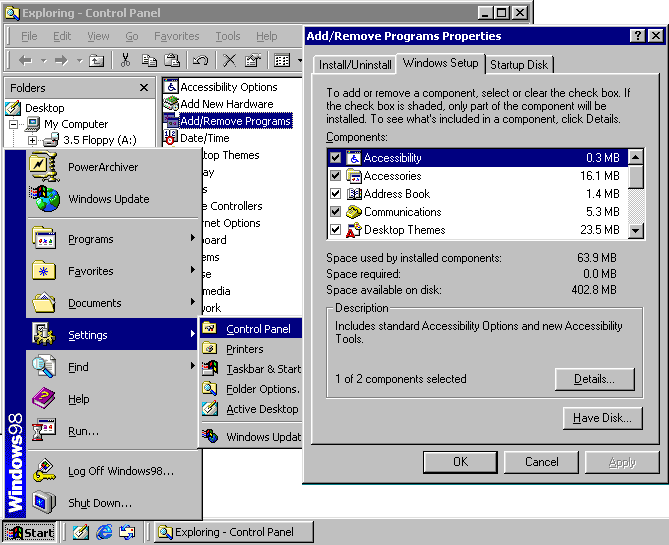
Step 1 : Windows 95
Winpopup can be found in the Accessories group:
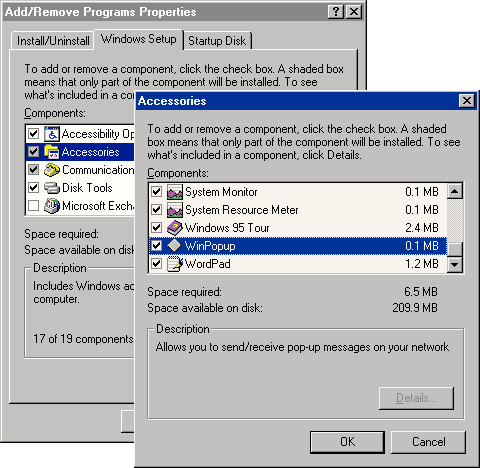
Step 1 : Windows 98 and Windows Me
Winpopup can be found in the System Tools group:
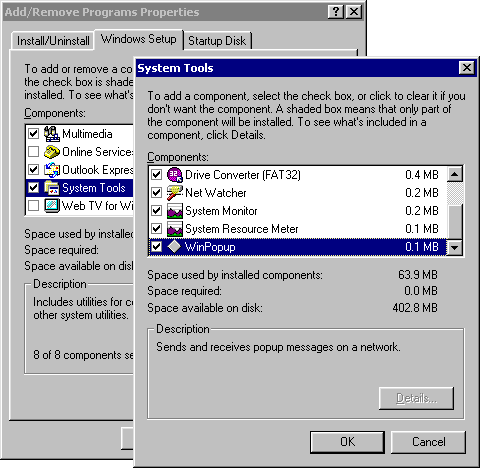
Step 2 :
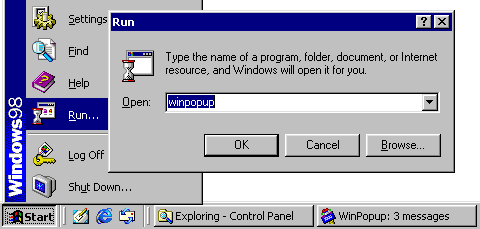
WinPopup is stored to your Windows directory. If it does not start up automatically, use the RUN menu to start it :
For continuous use, create a shortcut of WinPopup into your StartUp folder, learn how to create shortcut to Winpopup

Winpopup options :
To configure the behavior of WinPopup on receiving a new message, select from the menu: Messages the Options. There are three options in the WinPopup program. Go to Messages in the Menu bar of the WinPopup program, select Options, and click on all three boxes.
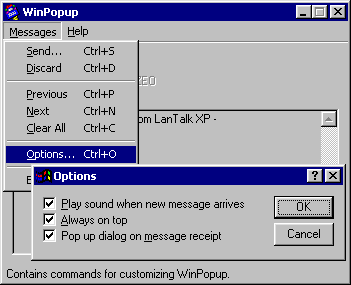
Using WinPopup :
When you receive a message, the program will automatically open and make a sound to let you know you have received a message. To answer the message, click on the envelope and the name of the user/computer that sent you the message appears in the User or computer box. Write your message in the white box below the name where it says Message. Click on the OK button to send the message. To delete a message that has been sent to you, click on the wastebasket icon.
To send a new message click on the envelope. Make sure the User or Computer radio button is selected. Type in the name of the User or Computer. Type in your message in the box below. Then click on OK.
To send a message to the whole workgroup, select the Workgroup radio button. Type in the name of the group, then write your message in the white box below and click on OK. It will go to everyone in that particular workgroup.
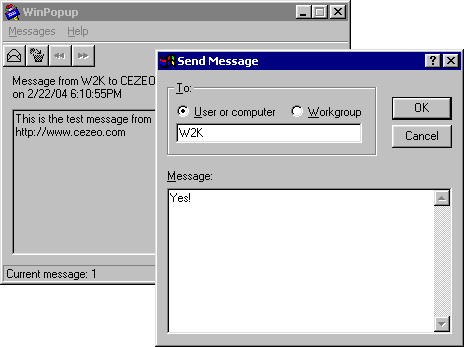
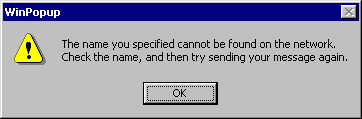
If you do not know the machine's name or the login name of the machine, your message will not go through. Look in your Network Neighborhood for the names of the computers you wish to contact.
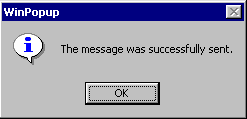
WinPopup will check, that the name is valid: that the defined user is currently logged on to the network or that the computer is existing and send the message.
If WinPopup is running on the Destination system, the message is displayed. If WinPopup is NOT running, than the message is lost ( think about it like an announcement on a radio: if the radio is turned on and you are listening, you hear the message, if the radio is switched off, you miss the message ).
However : it does NOT guarantee that the message is received on the destination system, that WinPopup is running on the Destination system.
If you need to be sure that message is received, please try LanTalk NET an Advanced WinPopup replacement.
In this example, the destination name could not be found on the network.
WinPopup will store multiple message, you use then the arrow buttons in the toolbar.To scroll between the messages, you also use the toolbar to start new message and delete received message.

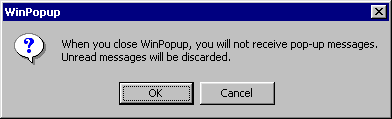
After you will close the WinPopup, all messages will be erased. If you want to keep all received and sent messages, please try LanTalk NET - an advanced WinPopup replacement.
Remember: When you exit WinPopup, you will not receive any messages !
You can use WinPopup to send messages to systems running Windows 95, Windows 98, Windows Me and Windows NT, Windows 2000, Windows XP and Windows 2003.
If you need more useful software than Winpopup, please take a look to the our LanTalk NET LAN messenger.