Windows messenger help, remove, uninstall, delete

Here two ways; you can remove Windows messenger from the system or just prevent it from starting up at startup.
Note: If you need a messenger for your local network, take a look to our LanTalk LAN Messenger.
How to prevent Windows Messenger from running with Windows
1. Open Windows Messenger and select the Tools menu.

Advanced LAN Instant Messenger
Terminal server compatible
Command line interface
Read-only / Reply-only modes
No server required
Ideal for Office Intranet
LanTalk NET messenger
2. Open the Options in the Tools menu, Windows messenger options will appears.

3. Please uncheck the following items:
- Run Windows messenger when windows starts
- Allow windows messenger to run in background
Also windows messenger may starts when you run Outlook Express. Please follow the instructions to disable it:
1. Open the Outlook Express, and select the Tools menu.

2. Open the Options in the Tools menu, the Outlook express options will appears.

3. Please uncheck the following items:
- Automatically log on to Windows Messenger
How to remove (uninstall) Windows Messenger
Windows messenger will not appears in the "Add/Remove programs" menu, because it's hidden. To unhide the windows messenger please do the next steps:
1. Open the file C:\WINDOWS\INF\SYSOC.INF in the any text editor, such as Notepad.
2. Find the line: msmsgs=msgrocm.dll,OcEntry,msmsgs.inf,hide,7
3. Delete hide, and result should be: msmsgs=msgrocm.dll,OcEntry,msmsgs.inf,7
4. Save this file ( with the same name ).
Now you can uninstall Windows messenger from Add/Remove programs.
If you have difficulties with this advanced operations, just download this file uninstall-windows-messenger.cmd and double click on it to execute. Windows messenger will be removed after that.
To install Windows messenger again, you should download it from Microsoft website or Windows Update and install it.
How to disable messenger auto sign-in in Windows 8
Open Messaging App:
Open sidebar by pressing Win+ I or moving your mouse to the right bottom corner.

Click on Options:
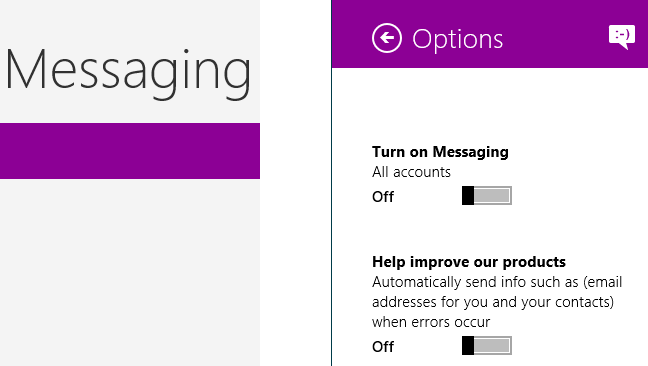
Disable option "Turn On Messaging"
To completely disable all online features of Microsoft Account
Open Start Menu Settings:

Open Settings:

Select Show Administrative tools

Go to applications and launch Services. Then Find Microsoft Account Sign-in Assistant, stop it and disable this service.
